1. Install the plugin
- Log in to the WordPress dashboard of your current site.
- Go to Plugins > Add New.
- In the search bar, type All-in-One WP Migration.
- Install and activate the plugin. If you have the Unlimited version, download the .zip file from your account or license and install it manually.
2. Export the WordPress site
- Once the plugin is active, go to the All-in-One WP Migration > Export menu.
- Click Export To and choose the File option.
- The plugin generates a file that contains all of your site’s files and databases.
- When it finishes, download this file (.wpress) to your computer.
3. Prepare the new environment
- For a live server:
- Make sure WordPress is installed on the new server.
- Log in to the WordPress dashboard of the target site.
- For a local server:
- Install a local environment (e.g., XAMPP, WAMP or MAMP).
- Install WordPress in this environment.
4. Install the plugin on the new site
- Repeat the plugin installation steps on the new target site.
- If you use the Unlimited version, reinstall that version here as well.
5. Import the site
- Go to All-in-One WP Migration > Import on the new site.
- Click Import From and choose the File option.
- Select the .wpress file that you exported from your old site.
- Wait for the file to upload. This can take a few minutes, depending on the size of your site.
- When the process finishes, the plugin asks you to confirm that you will overwrite the existing content on the new site. Click Proceed.
6. Finalize the migration
- Once the import is complete, log back in to the WordPress dashboard on the new server. The login credentials are the same as those of your old site.
- Check that everything works correctly:
- Pages and posts.
- Plugins and themes.
- Images and media.
- Internal links.
- If necessary, replace the old URLs with the new ones using the plugin’s built-in find/replace tool or tools such as Better Search Replace.
7. Post-migration tests
- For a live server:
- Test the site on different browsers and devices.
- Check the DNS settings if you changed domains.
- For a local server:
- Make sure everything works locally before you push the changes to a live server.
Important tips
- File size limit: If you use the free version, you are limited to 512 MB. The Unlimited version removes this restriction.
- Always back up your site before any migration.
- If you run into problems during the transfer, check the plugin logs or contact support.
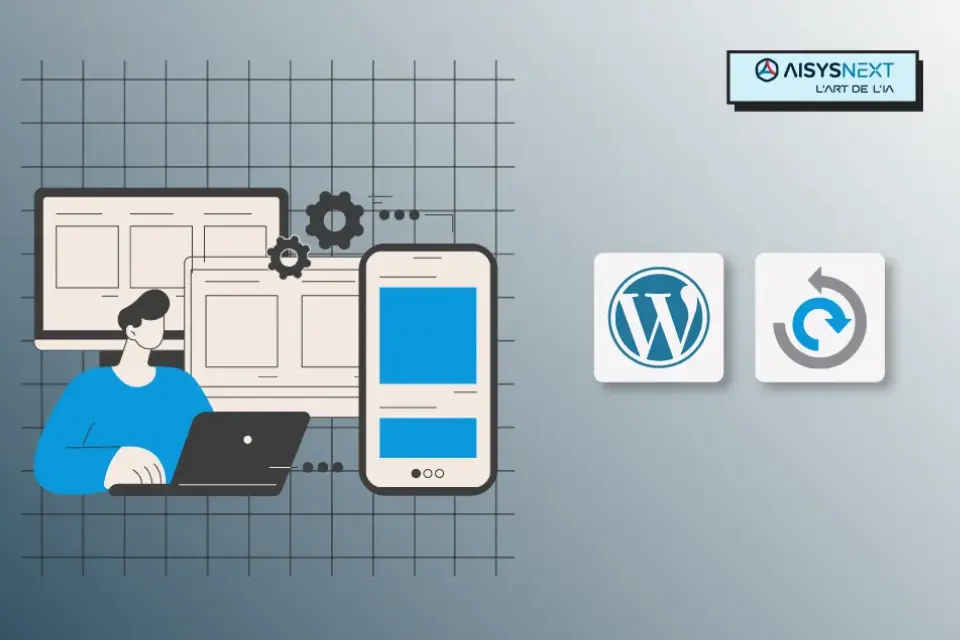
With All-in-One WP Migration Unlimited, migration becomes simple, even for non-technical users. If you want advice or assistance with specific projects, feel free to ask!